The final step is to request access to be able to set up API Keys within your Apple Developer Account. We required an App Store Connect API key to be able to download the lates app versions in our CRM, but also download nightly reports for your app downloads for your app stats reporting.
To request access to the API you must first do this:
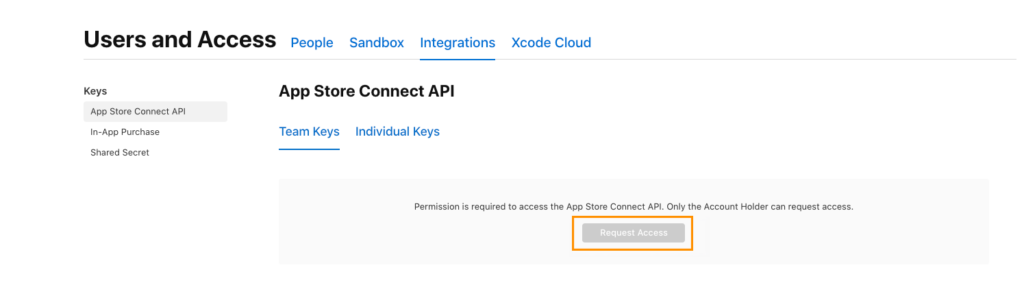
- Login to App Store Connect and Select the ‘Users and Access’ area
- From the blue tabs at the top of the screen, click “Integrations”
- In the left side menu choose ‘App Store Connect API’
- Under “Team Keys” it will state that “Permission is required to access the App Store Connect API. Only the Account Holder can request access.“
- Click “Request Access“. This will allow you (or us if you added us as admins) to create API Keys. If you are given an Auth Code to download, please also send that to us.
Once you have access to the app store API you are able to create us a key/certificate for us to use for these automations. You may also have use for these yourself in your own CRMs or other integrations to access app downloads and metrics.
Info
Note: If you gave us admin access to your App Store connect account and you have completed the above steps then we are able to complete the rest. If not following the next steps.
We require four things during the API creation process. The key certificate (often a .p8 file), the key ID, the issuer ID, and your vendor ID.
- Click to generate a new key
- Give it a name eg ‘Holidaymaker Automations’ or similar
- If you are giving us granulated access, rather than admin access, we will require access to download ‘sales’ reports. Even if you app is free downloads will be reported as a sale so you will need to give that API key access to ‘Finance’ or ‘Sales and Reports’ as well as ‘App Manager’
- You may only be able to download the key once so save the generated .p8 file safe
- Make a note of the key ID – this is normally 10 characters long (alphanumeric) and is often in the name of the downloaded .p8 file
- Make a note of the issuer ID which is visible on the API keys page above the list of API keys (This will look similar to this 1234abcd-12ab-12ab-12ab-123456abcdef)
- The vendor ID is found in a different part of the app store.
- Go to ‘Reports’
- From here you need to be on the Payments and Financial Reports which is often the first page
- In the top left corner you should see your Vendor ID – make a note of this
- Then supply us with the p8 file, the Key ID, the Issuer ID, and the Vendor ID
Info
To follow Apple’s own tutorial on how to create API keys for us to use you can read this guide : https://developer.apple.com/documentation/appstoreconnectapi/creating-api-keys-for-app-store-connect-api