Styling your Booking Experts integration
It couldn’t be easier to bring the power of your brand to your Booking Experts integration for a seamless guest experience
Getting started
The first place we need to visit for the Checkout Design is to choose ‘Checkout Design’ from the Booking Experts section of the main menu on the left hand side of your CMS.

Uploading Brand Assets
From here we want to set a header image and logo. The header image and logo will be visible to the users on the initial availability search page.
It is also important to choose your brand colours to use throughout the user experience. These will influence the colour of the buttons and icons.

Header Example
This is an example of the brand assets in action on the page header of the booking integration for ‘Key Park’, our testing example

Brand Colours
This is an example of the brand colour being used on call-to-action buttons throughout the booking process

Styling Your Rentable Segments
When you enlist with Booking Experts they will set you up with a number of rentable segments; these are typically things like
- Lodges
- Apartments
- Camping
To make it more visually appealing to users, this section of the CMS allows you to pick an icon from the list (or upload your own custom icon) for each Rentable Segment type.

You may also override the name of the rentable segment if desired. For example in your Booking Experts system you may have a segment of Pitches which you may want to rename ‘Touring and Tent Pitches’ or similar.
Info
In a standard configuration you would also include an All option and choose an icon for it. This isn’t an actual segment in your Booking Experts system, but as the name suggests, we then search for all available.

Age Groups / Guest Types
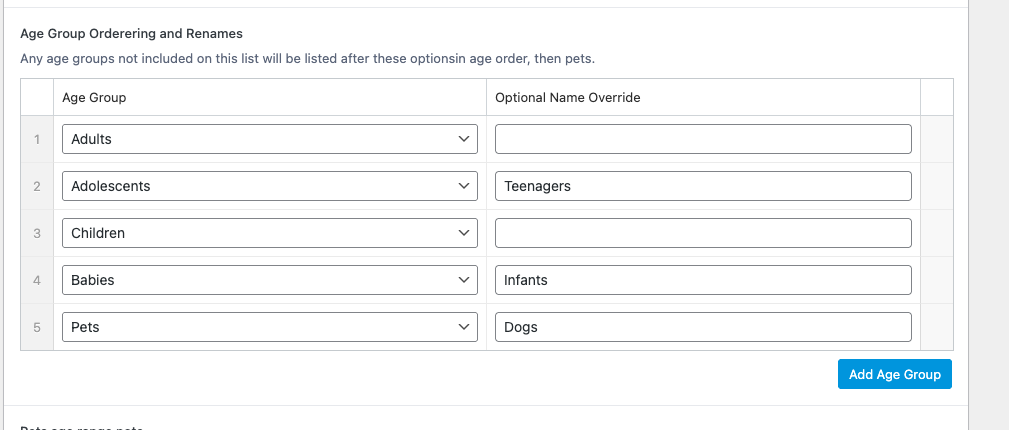
Another setting from Booking Experts are the guest age groups that you use. As well as choosing which order they will be rendered, you can also override the name given.
Pets Availability and Age Range Renames
In booking experts the concept of ‘pets’ (most commonly dogs) is always ON and cannot be turned off. As a park however you may not actually cater for dogs, or it may not effect the booking process if you do. We discover this in our integration by checking if pets are available on any of your accommodation types, and what the maximum would be. This same process is used to discover what the maximum amount of guests can be booked for an accommodation.
If dogs are enabled on your park can choose a ‘range note’ which renders after the name, in the same way an age group would. However in this case you can give it a fun tag line to suit your parks branding. The default is Well behaved companions. This field can be made blank to not include a range note for the dogs options in the booking engine.

Rename Setup
In this example we have changed Pets to ‘Dogs’ and the name of all the babies and adolescents age groups to match your parks terminology and tone of voice.
Rename Rendering Example
This will then render on our engine like this.

Result Options Display
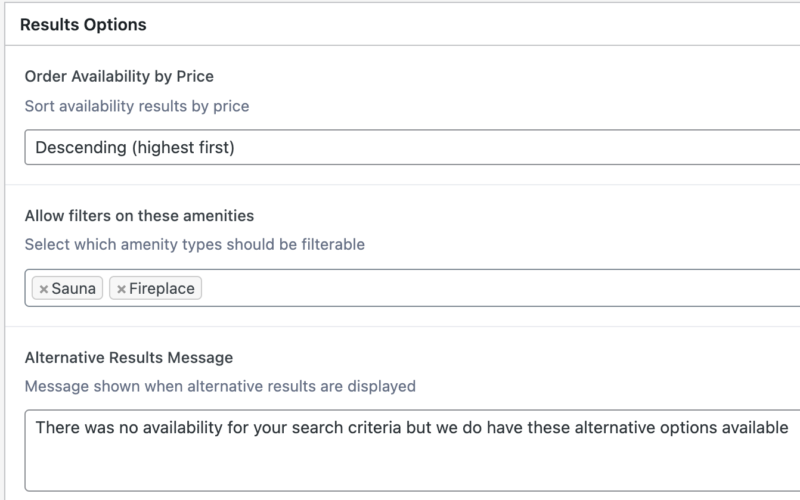
There are a few further options that denote how the results display to users;
Order Availability by Price
Choose how you would like the availability results to show, the highest price first or the lowest price first
Order Allow filters on these amenities
There are lots of potential amenities setup for accommodation types in Booking Experts. Any of the amenities added here will allow your guests to filter results by them ie. Sauna’s, Outdoor fire pits etc
Alternative Results Message
This is the message a user will see when their search yields no results but changing some of their parameters yields has

Example amenities filter on results page