Smart TV Setup
Generally your app uses the same content, ordering, and setup as your mobile app. There are however some customisation you can make:
- Change featured items in the various sections
- Change the main side menu in the TV App
These settings are found either on the side menu of the CMS, or from the dashboard:
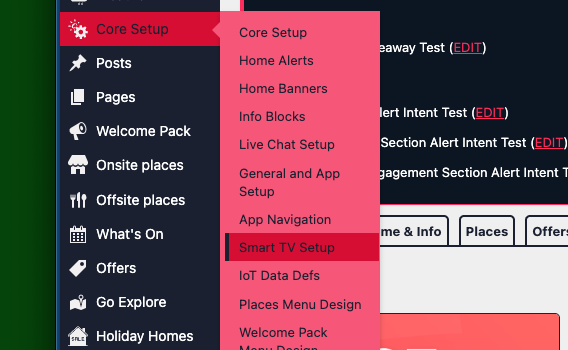
- Menu -> Core setup -> Smart TV Setup
- Dashboard -> Advanced Tab -> Smart TV Setup
Featured Items
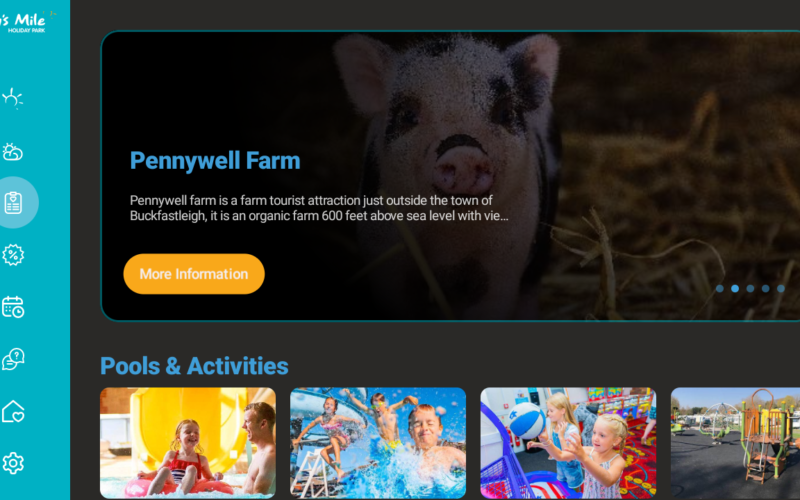
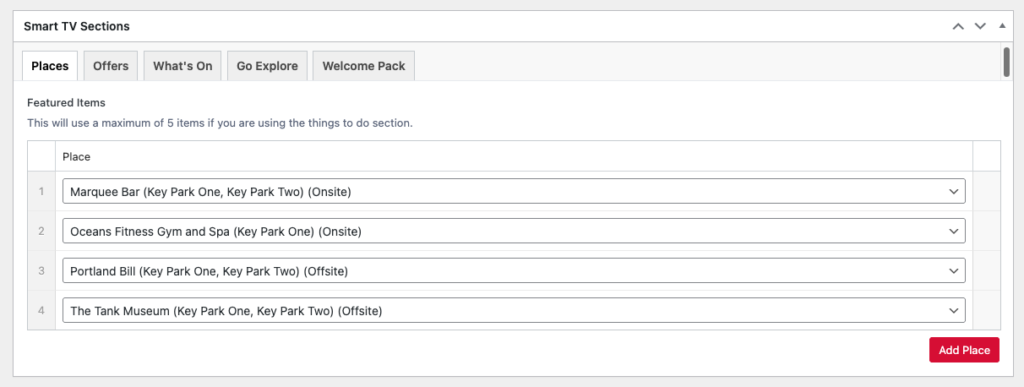
The top field group on this setup page is for the Smart TV Sections Feature Items.
This allows you to select multiple items to show as a paged slider on each section. This can be used to then feature your top on-site places, affiliated off-site place, top offers, or events.
If your park is setup as a Group Site install then each item’s title will indicate which group sites that content is available for. If the TV app is set to a group site which is not relevant for a featured item, then it will not show to those users. This means you have a single list for your entire organisation for all group sites.
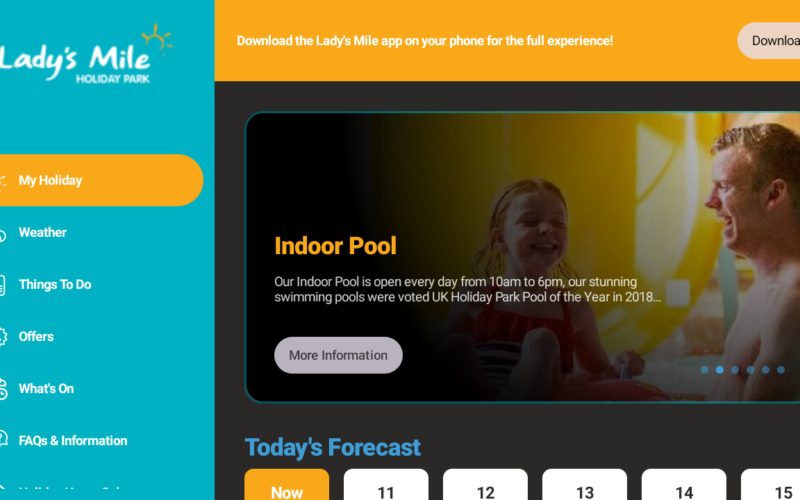
In the screenshot here you can see the Things to Do section highlighting a local partner offsite attraction.
Smart TV Navigation
The main side bar of the TV includes an expandable navigation pane. This shows just icons as standard, and then expands to show titles as well. This is standard Google TV design structure which will be familiar to many smart TV users.
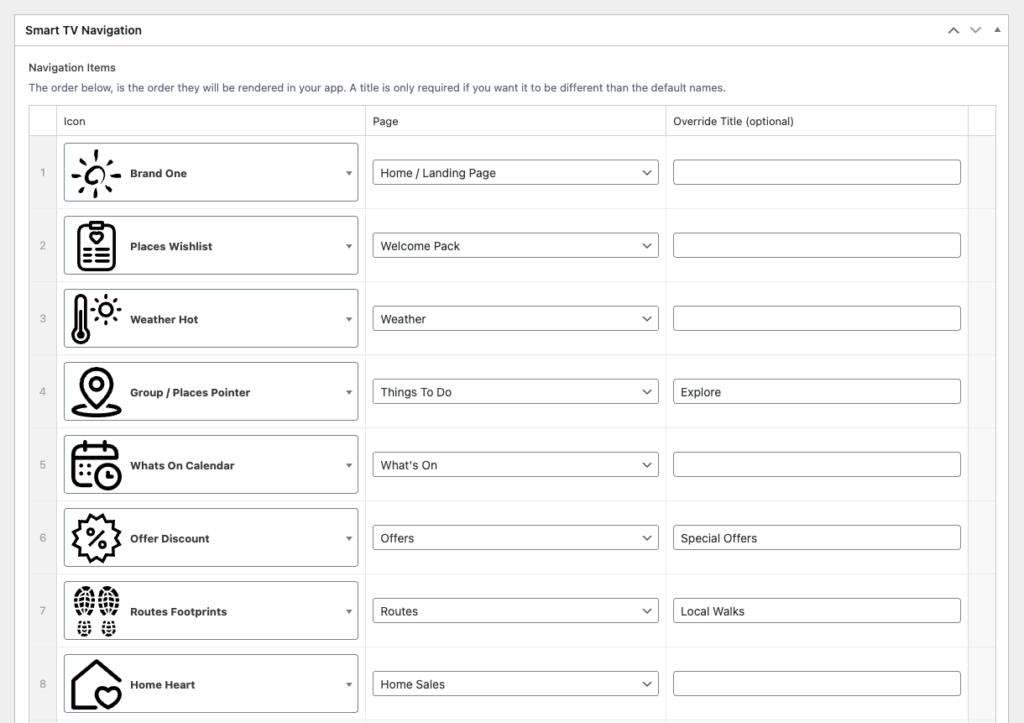
You can customise the ordering, icons, and titles of these items using the Smart TV Navigation fields.
You can change these as often as you want, and are generally respected by your TVs within 60-80 minutes. Simply choose what Icon you wish to use, what section that item should navigate too, and an override title if required.
You can drag the items around using the number column on the left side of the rows, and remove an item using the ‘-‘ icon that appears when you hover over the column on the right of the row.
Info
We have the ability to include up to two branded icons for you, as well as replace some of the other default options, with other different icons if required. This would be done in the initial setup phase of your TV App. These can be changed after launch, but would require an app update to be respected on your in accommodation TVs.
Surface Restrictions
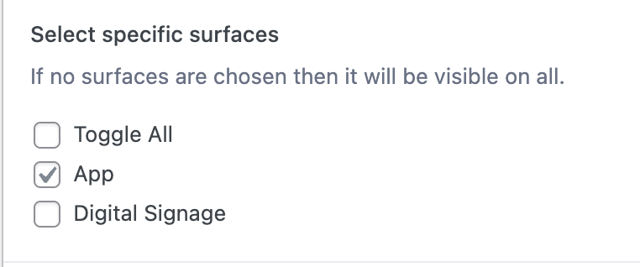
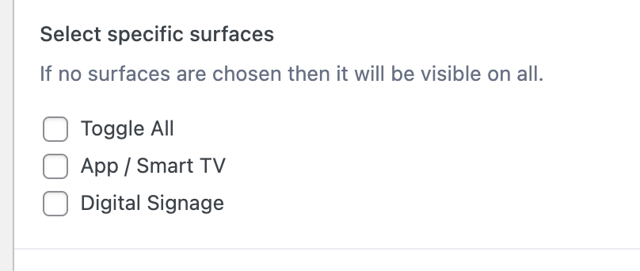
If the HM Core setup has multiple surfaces (eg kiosk, web, or displays) then the surface restrction selection for ‘App’ will be renamed to ‘App / Smart TV’. The smart TV is an extension of the mobile app, so at this time there is no way to filter content between these two surfaces. This is on our roadmap and can be accelerated if this is an important need for a client.
Below are examples of how the surface check boxes are renamed if you have the smart TV module.