Installing and Managing your Android TV App on your park or premises
Updated 24 June 2026
The Android TV app is actually the same app as your standard Android app end users install on their phones or tablets. The app however knows that it is on a TV so will render completely differently. Because of this it is completely possible to install your app via the Google play store onto your smart TVs, but this is dependent on how your TVs are setup in your parks IT infrastructure.
Hardware Considerations
The apps require Android TV, Google TV or FireOS TV (Amazon Fire Sticks)
They do not work on VesaOS which is used by the new 2025 Amazon Fire Sticks
They do not work on none-Android based smart TVs such as LG’s running WebOS, or Samsung’s running Tizen OS
We cannot guarantee compatibility with all Android based TVs but we have had success testing on TVs made by TCL, Mitchell and Brown, as well as the HD and 4K editions of the Amazon Fire Sticks.
Your TVs must have a reliable internet connection. WIFI will work, but we recommend an ethernet wired connection when it is possible.
Installation Options
Step 1 of 4
Option 1 : Installing from App Stores
If the TVs in your accommodation are logged into a Google account or Amazon account simply find your app on the TV Google Play Store, or Amazon App Store.
This option will keep the app updated the same as other TV apps
If the Google account that installed the app is logged out, the app will no longer load
Step 2 of 4
Option 2 : Installing manually
We can supply your IT/tech teams with the Android ‘APK’ files which you can then manually install onto each TV. This would not need a google account logged into the TV. When updates are made we would supply another file for you to then manually update again.
This option is suitable for parks with a small amount of TVs to maintain or a large park with a in-house IT team
This would require you to apply updates yourself manually
Step 3 of 4
Option 3 : Using your existing, or new Enterprise Device Management
Sometimes referred to as Mobile Device Management (MDM), EDM software can lockdown Android, iOS, and PC devices, including Android TVs to then restrict what apps users have access too. These apps also give you the ability to install your own internal enterprise apps.
This is the most robust method as you, and your IT team have locked down control of the TVs in your accommodation
You can choose to install the app from the google play store, or we can supply you with the APK files for you to install as an internal enterprise app
If you use Google Workspace, or Microsoft 365 internally, then these systems already include an Android EDM system – your IT support, or suppliers of these can guide you to setting these up
EDMs would often give you the option to reset a TV after someone has checked-out as well – e.g. you could clear any apps they have logged into etc
Some EDMs would give you the ability to force launch your holidaymaker app when the user turns the TV on
Step 4 of 4
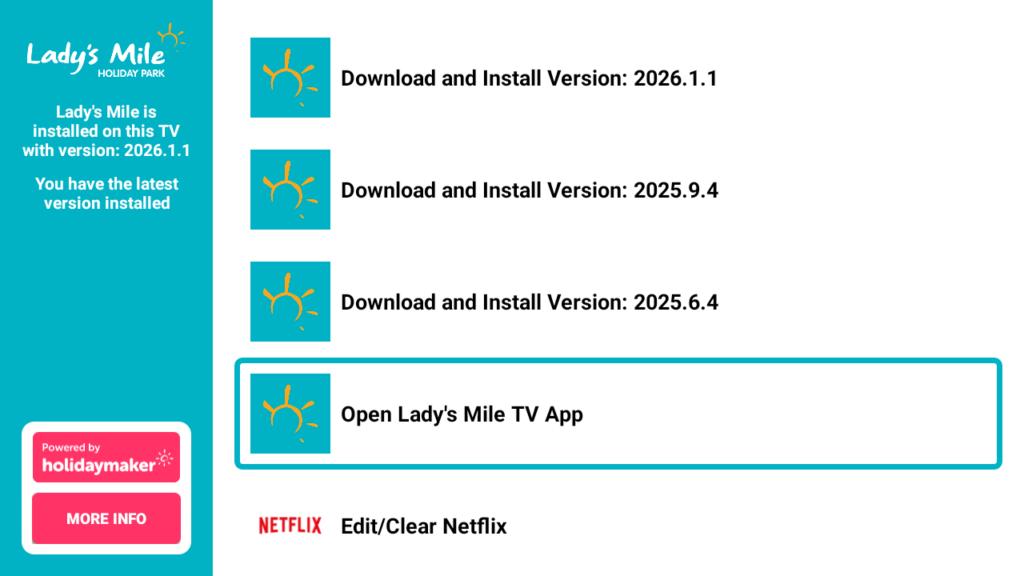
Option 4 : Using our Holidaymaker TV Manager App
We have developed a TV manager app which you can manually install onto your TVs. This would be branded to your holidaymaker install. Once installed this app can then allow you to install the latest updates of your app without needing to be logged into a Google play account. It also gives you quick links to clear login data from popular streaming apps.
This app does not show on the normal TV apps so your guests won’t really come across it
If a guest does find it, the worst they could do is update your app for you
Only heavily tested and approved TV builds of the Android app will appear to install here
You do not need to be logged in with a Google account to install your app, or manage updates
Handy links to stream app settings to clear guest login data
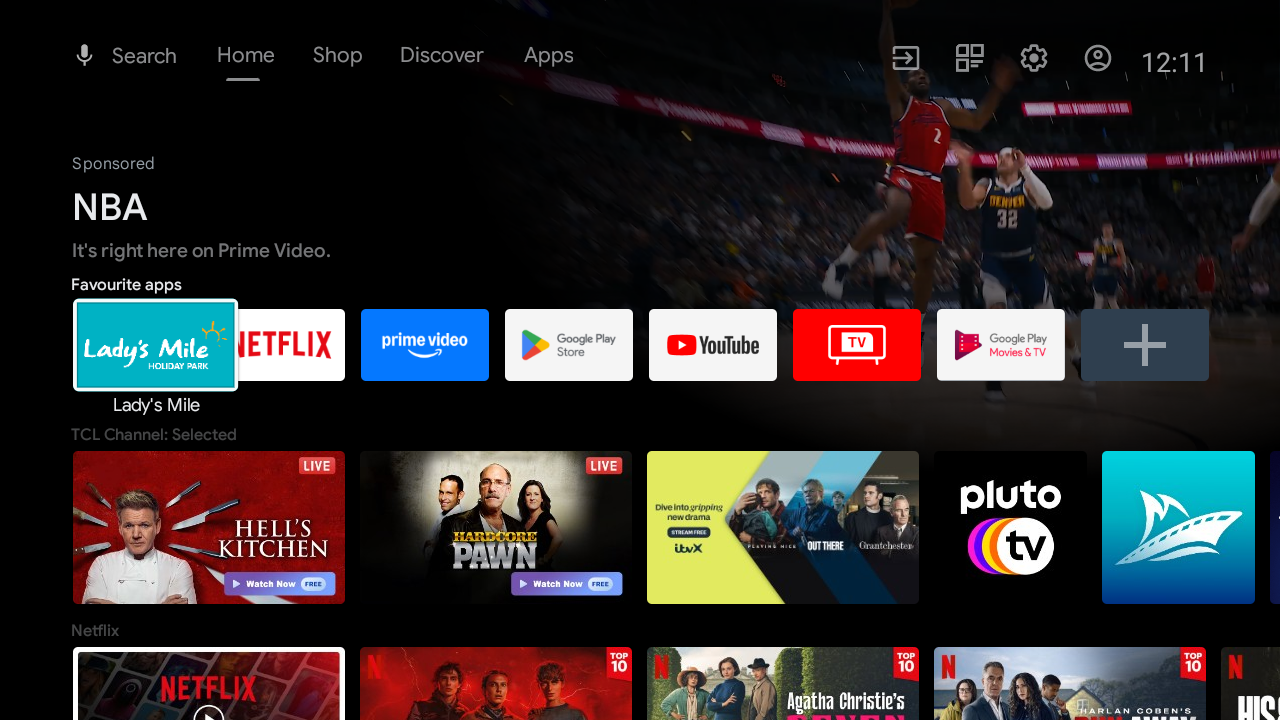
Once your TV app is installed, you can easily move it to be the first app on the TVs home page and app lists. The below example is on a TCL TV running Android TV (Android 11)
Warning
Note: This may look different depending on which version of Android TV you are using. These examples were on Android 11 before the OS was rebranded as ‘Google TV’ which is often a common version used on consumer TVs.
Step 1 of 4
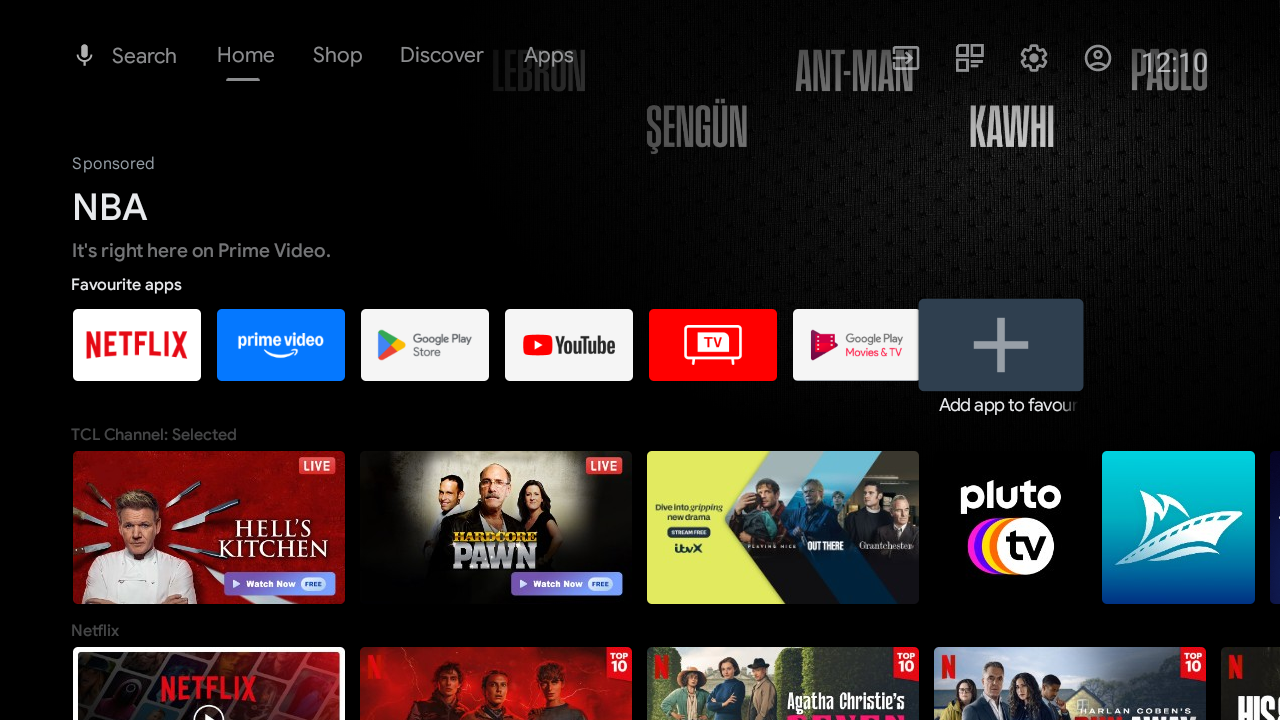
Add as favourite
Find the option on the home screen to add an app as a favourite. In this case it is the plus symbol at the end of the current favourites.
Step 2 of 4
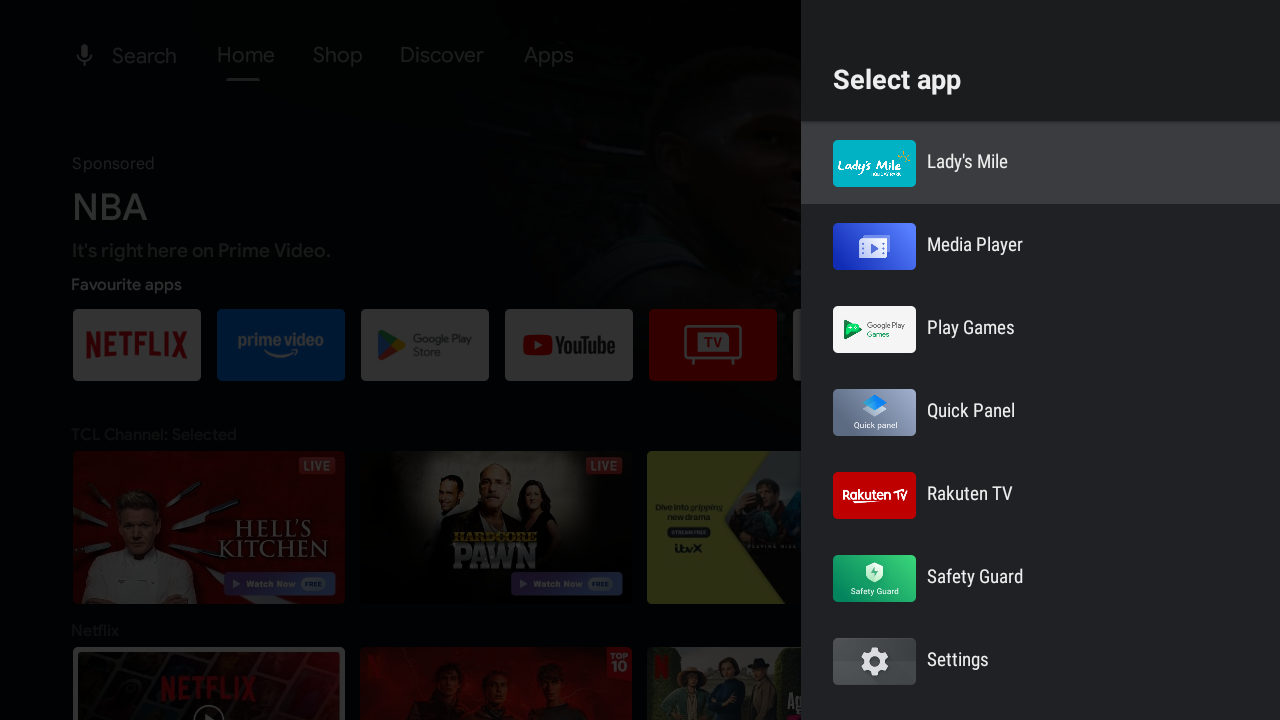
Find your app
Find your app on the list
Step 3 of 4
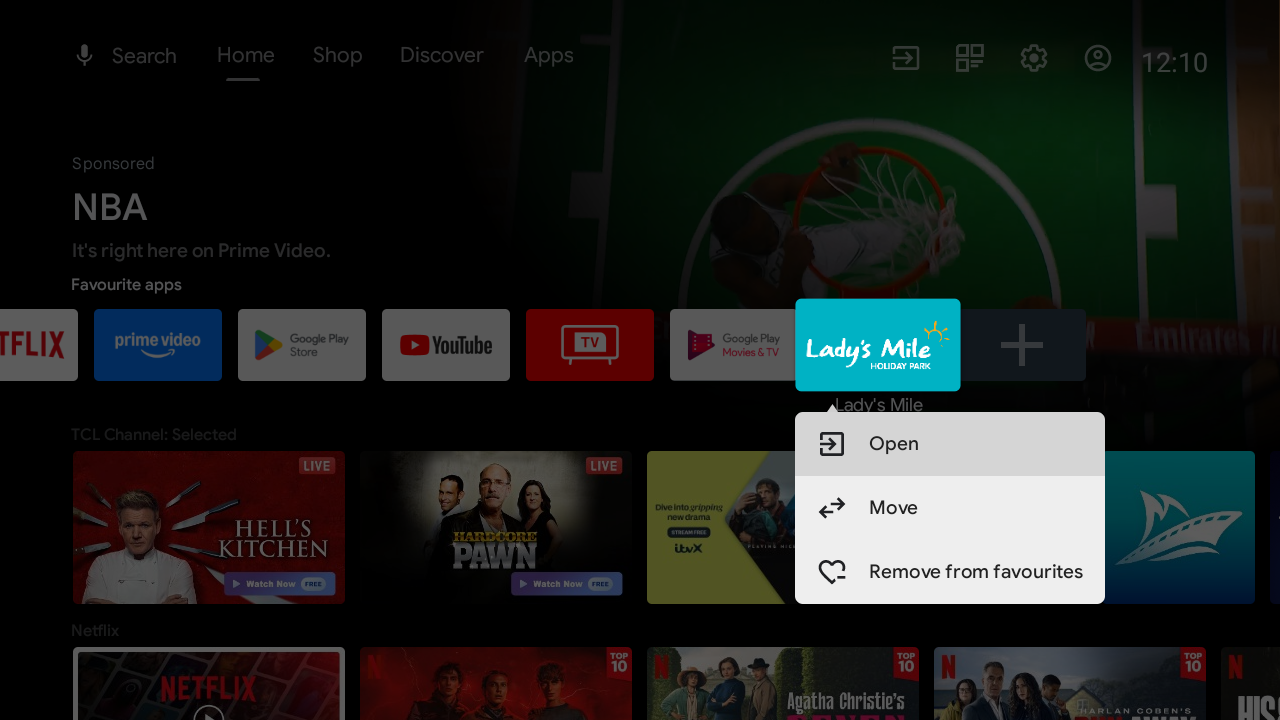
Bring up menu
This will be added to the end of the list
Note: Long press on the TV remote select button to then bring up a menu similar to this
Step 4 of 4
Move to front
Select move and then use the remote to move your app to the front of the list