The Holidaymaker TV Manager app can be installed by yourself, or your IT team, to then be able to manage your TV App’s installation, updates, and quick access to streaming apps settings to clear their data. Information on how to use the TV Manager app can be found here.
There are two options to manually installing the app for the first time:
- Downloading the app onto the TV and then installing it
- Using a laptop on the same network as the TV, and installing via the ADB command line (Android Debug Bridge)
The first of these is generally the preferred method and can be done by anyone who is comfortable using consumer technology. This is often performed by a manager, or maintenance team. The second method may be preferred by IT teams and is much quicker, but requires more computer knowledge and a suitable network setup.
Downloading and Installing it on the TV
This method it a multi-step process where you first acquire apps on the TV to be able to download the app from our servers and then install it. After it is installed you can then clean up any preparation made.
Info
If the TV already includes a web browser, file manager, or similar to be able to download and install apps, then you can skip this step and simple need to perform steps 13-15 under ‘Setup the Downloader app and install‘.
Aquire an app to help you download and install our manager
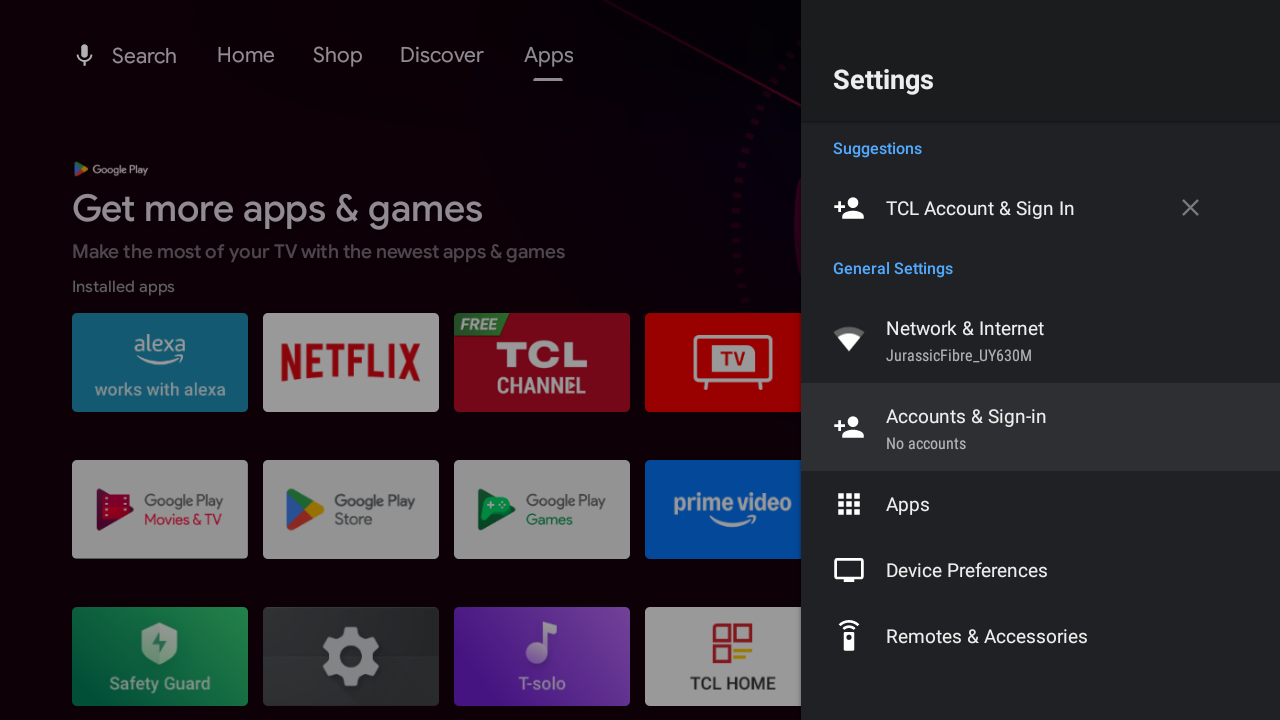
Find Accounts & Sign-In
There are several options to download and ‘side-load’ an Android app onto an android TV. To get these you need to login to a Google account, and use the Google Play Store to install your chosen tools. There are options e.g. using a web browser to download, and a file manager to install, but we recommend an app called ‘Downloader’, if it is available for your device, as this can download and install the app at the same time.
- Go to your device settings
- Choose Accounts & Sign-In or similar and choose to add an account if one is not logged in
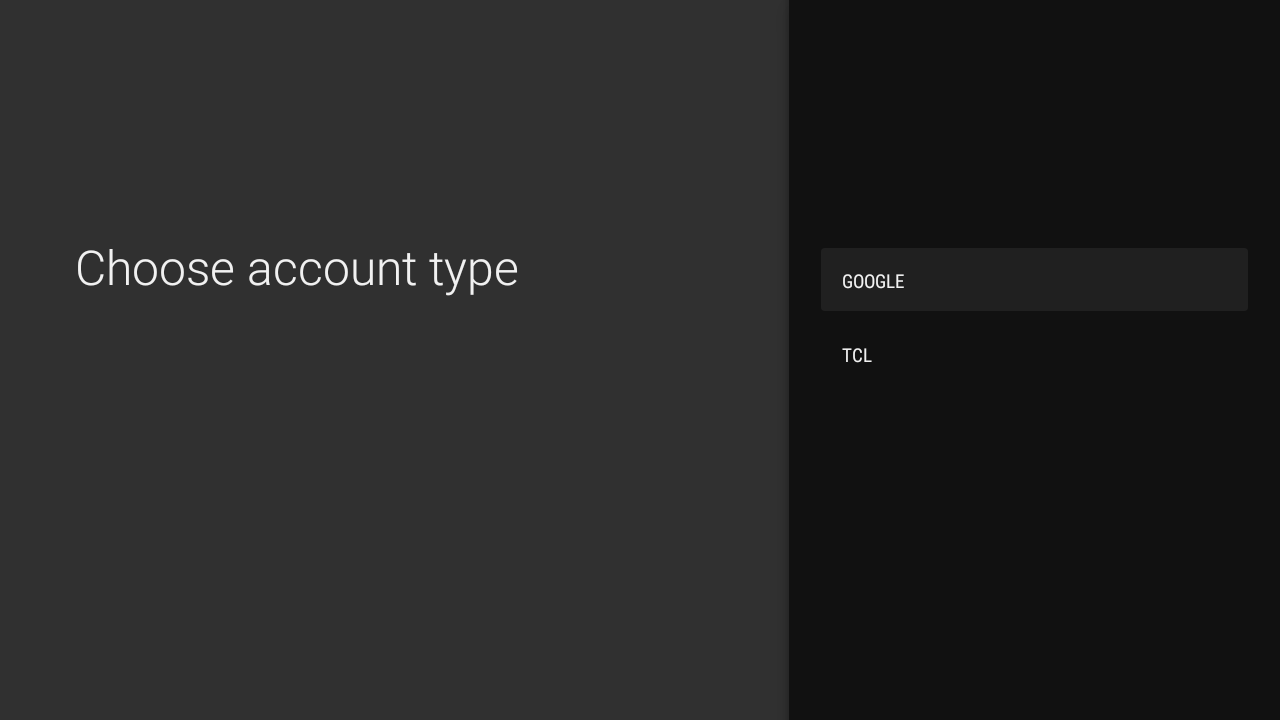
Select Google
If you get given an option of different accounts choose ‘Google’
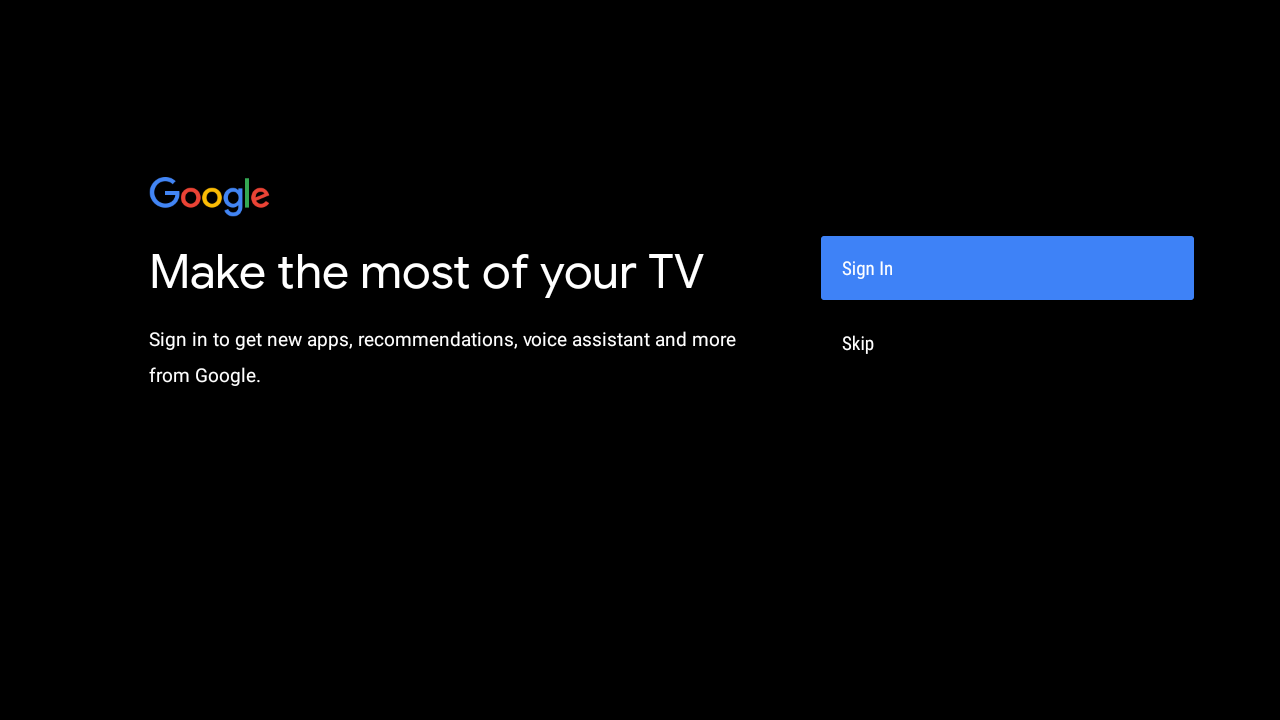
Select Sign-In
Select ‘Sign In’ – You will need a Google account – this does not have to be a GMail account, but simply a google registered account.
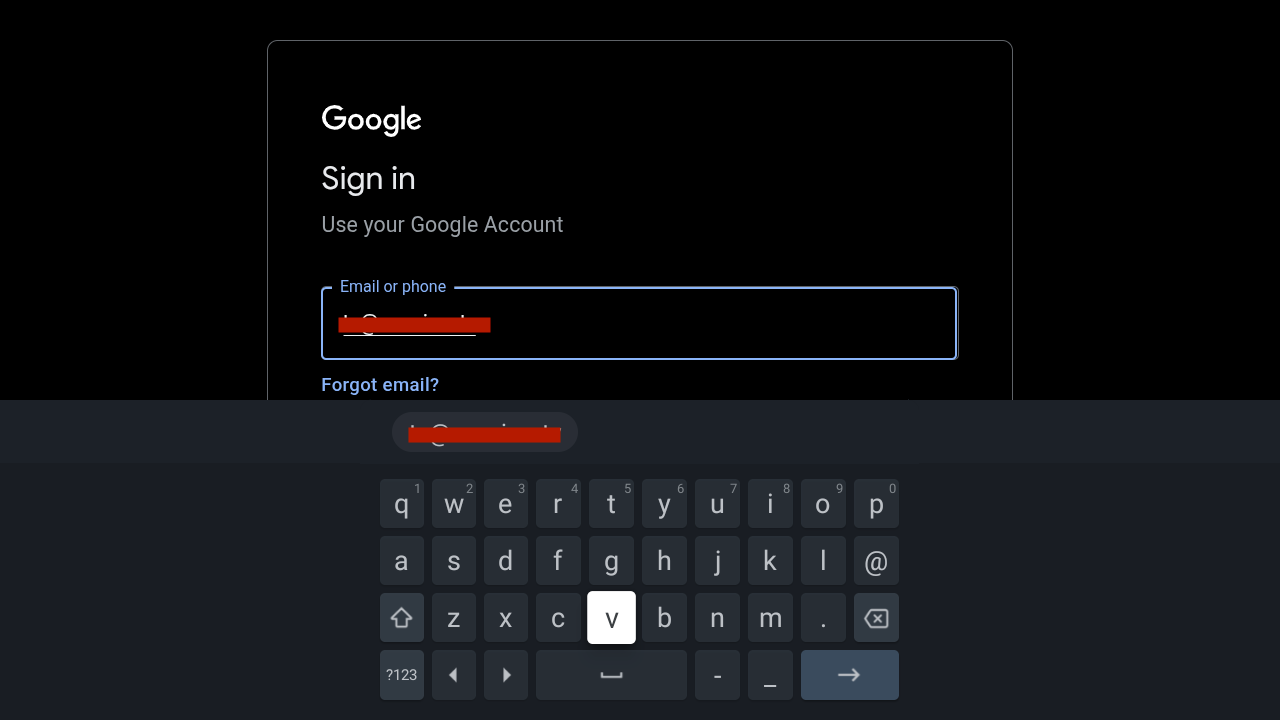
Enter You Credentials
- Enter your Google account email address
- Enter your Google account password
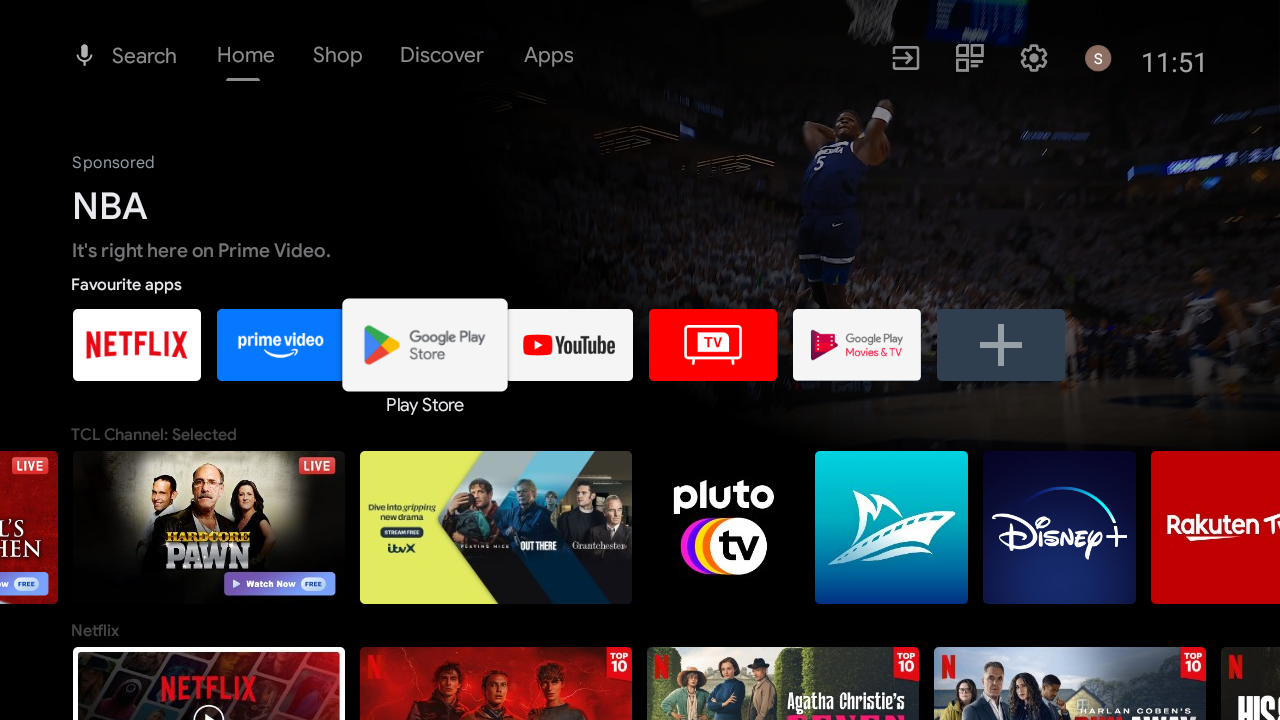
Find the Google Play Store app
The Google Play Store should be found on your full apps list, and sometimes on the home screens favourite apps.
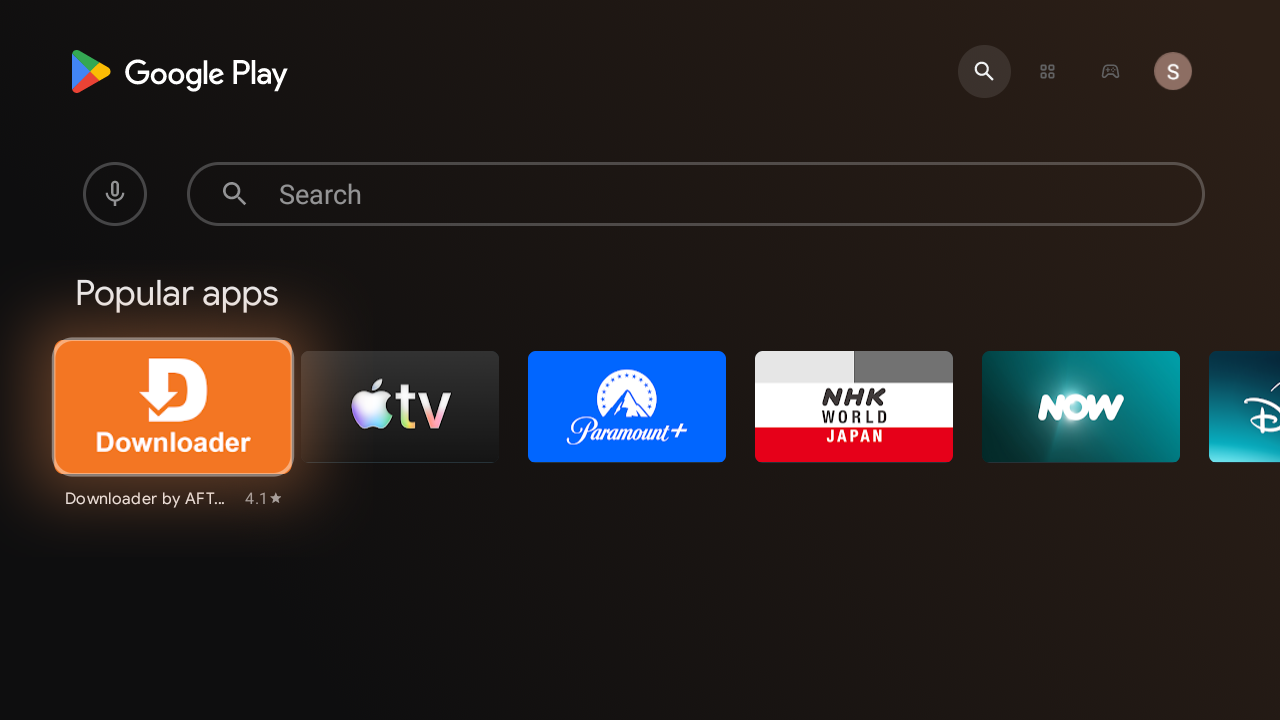
Install Downloader
Search for ‘Download’, find, and install the ‘Downloader’ app which is normally an orange banner with a white ‘D’ logo. This is often found as one of the most popular apps when you go to search anyway.
Setup the Downloader app and install
Locate System Apps List
You need to allow the Downloader app to install ‘Unknown source’ apps, which is any app not installed via the Google Play Store. It is worth doing this before you open the app as it makes the process more streamlined.
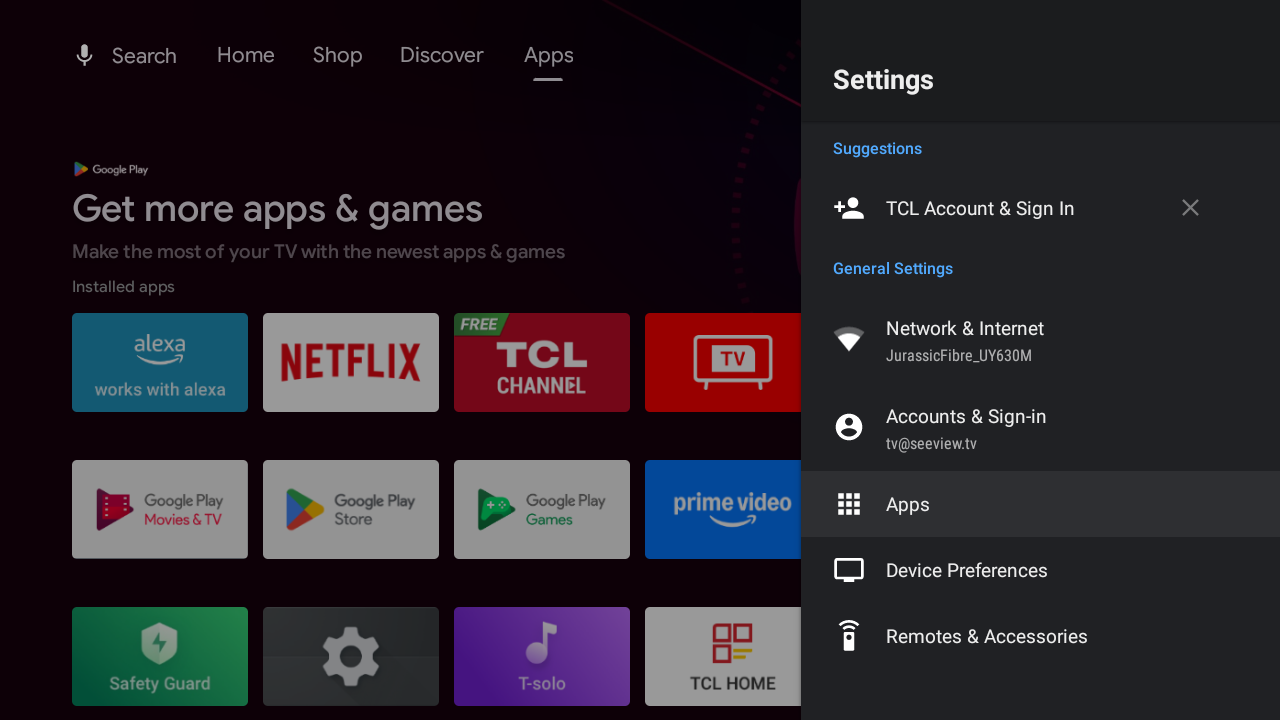
- On the Android TV settings find ‘Apps’
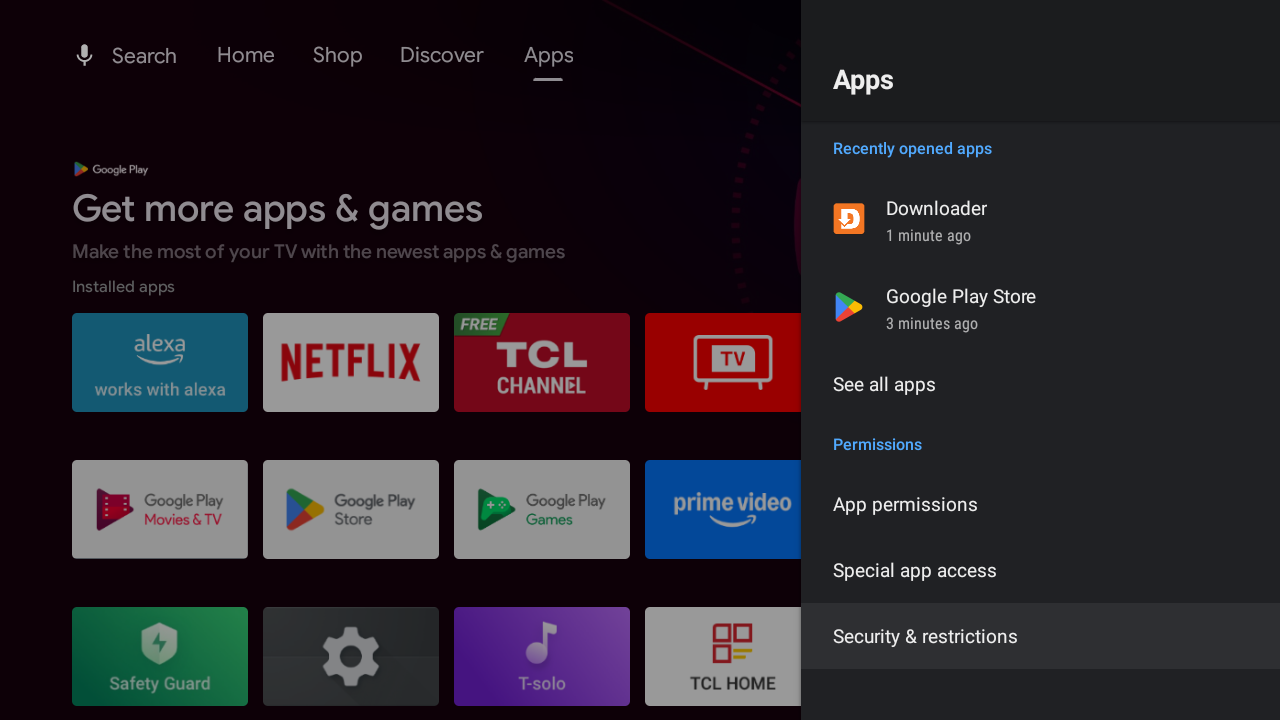
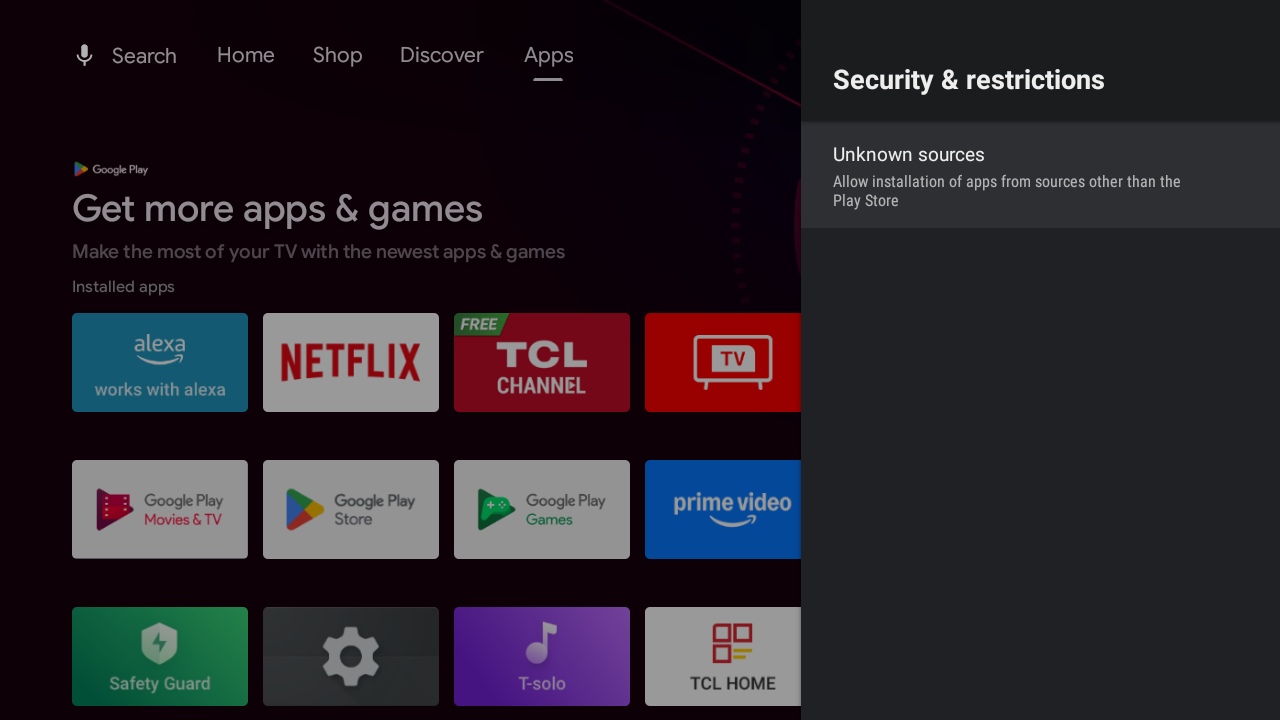
Find 'Security and Restrictions'
Do not go to the apps list, but instead find the ‘Security & Restrictions’ option often under a subheading of ‘Permissions’
Select ‘Unknown Sources’
Select ‘Unknown Sources’
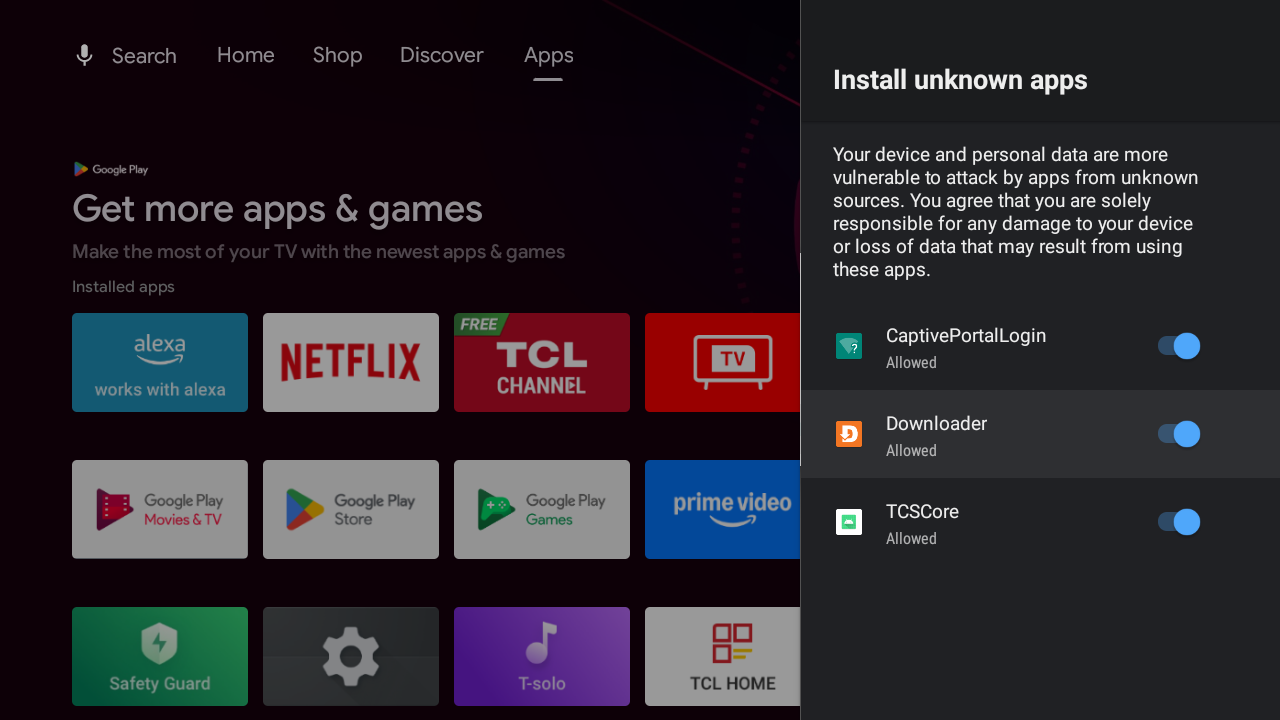
Enable for Downloader
Tick on the ‘Downloader’ App
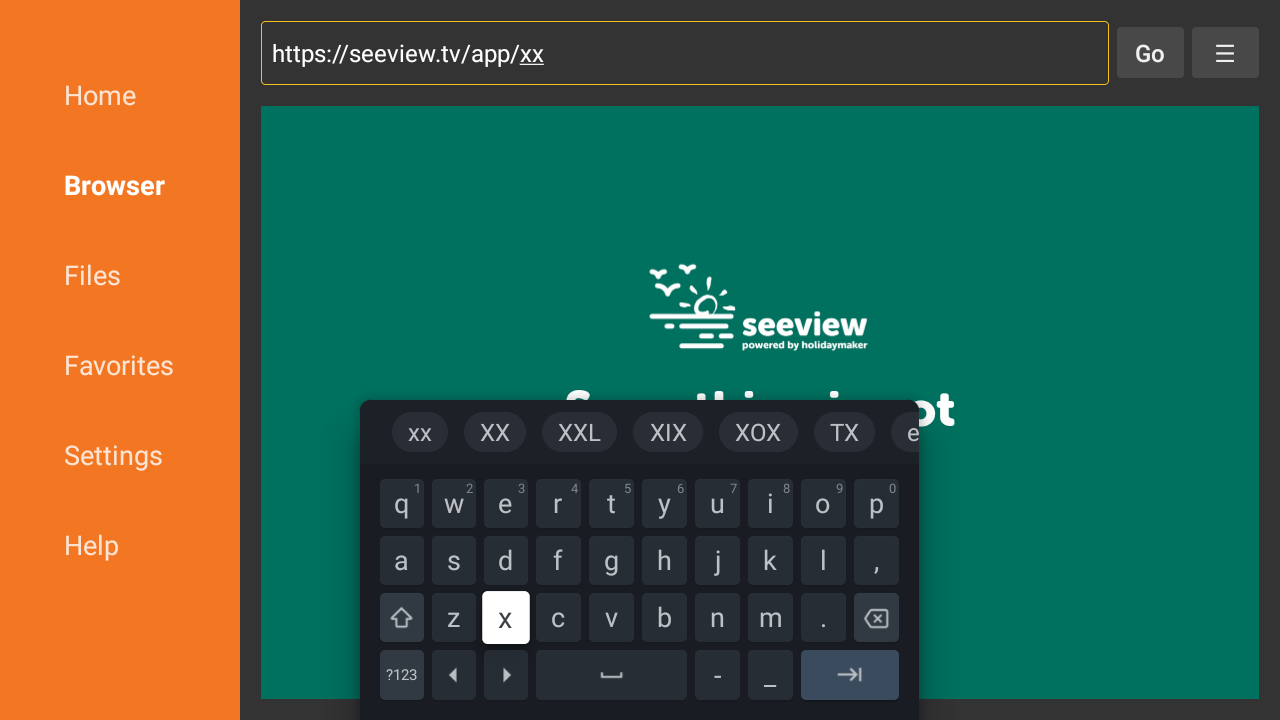
Open Download Url in App
Open the downloader app and use your Holidaymaker TV Manager url provided by your holidaymaker contact to download and prompt the install
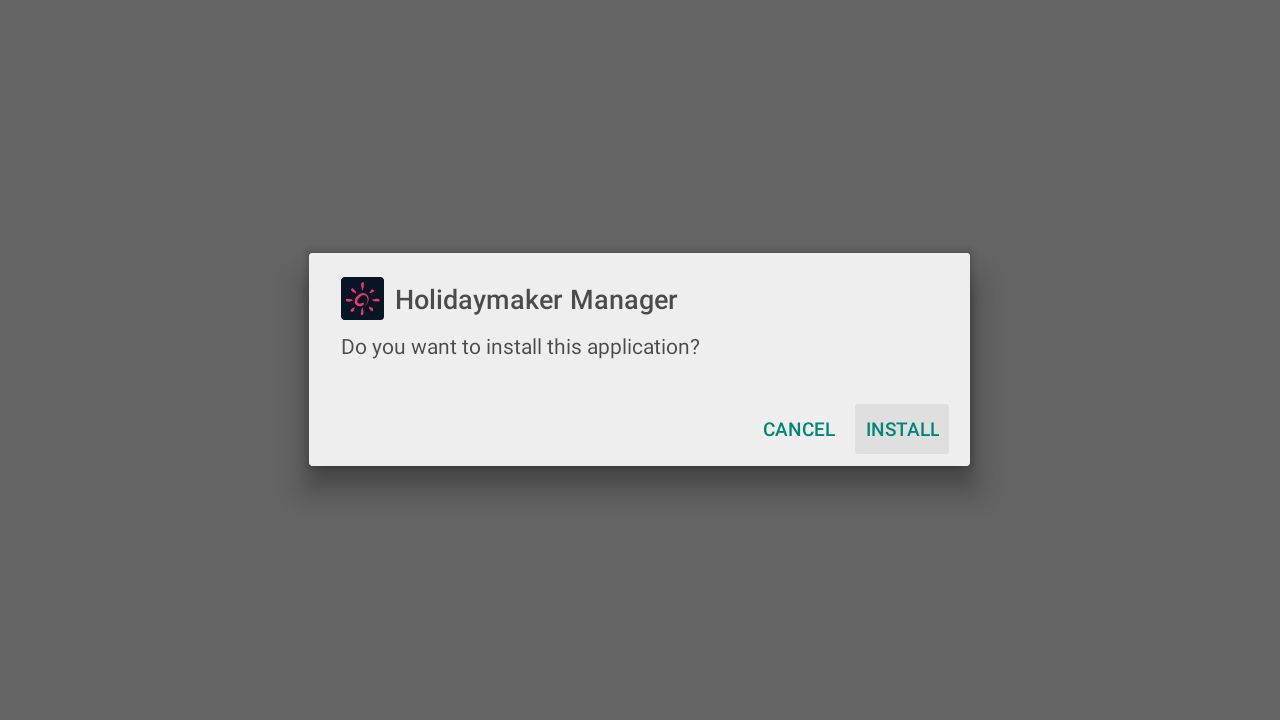
Install
Once downloaded it will prompt you to install – once installed just click on ‘Done’
Allow Manage To Install Unknown Sources
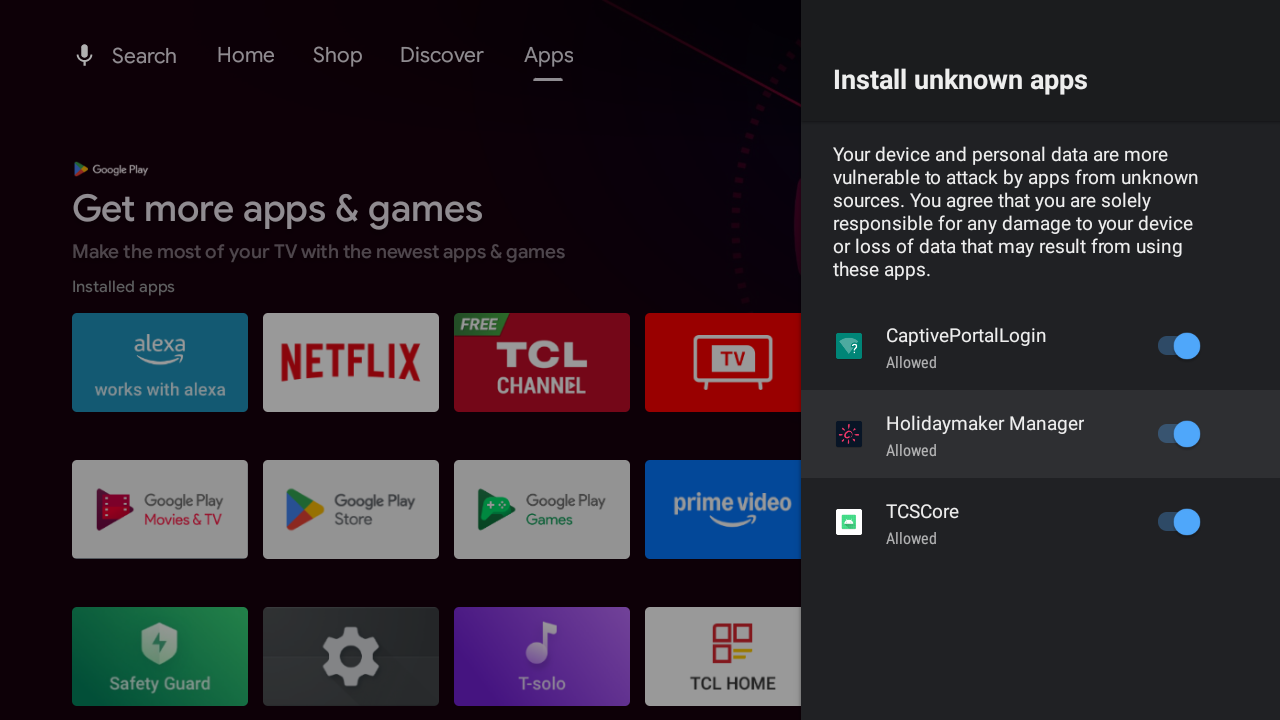
Repeat steps 1-4 but instead allow Holidaymaker Manager to install unknown sources
Clean up
Now you have the Holidaymaker TV Manager installed you no longer need to be logged into the TV with your Google account and can uninstall the Downloader app.
Note: Even if you do not uninstall the downloader app, once you are logged out of your google account, the app will no longer work as it is ‘licensed’ to you
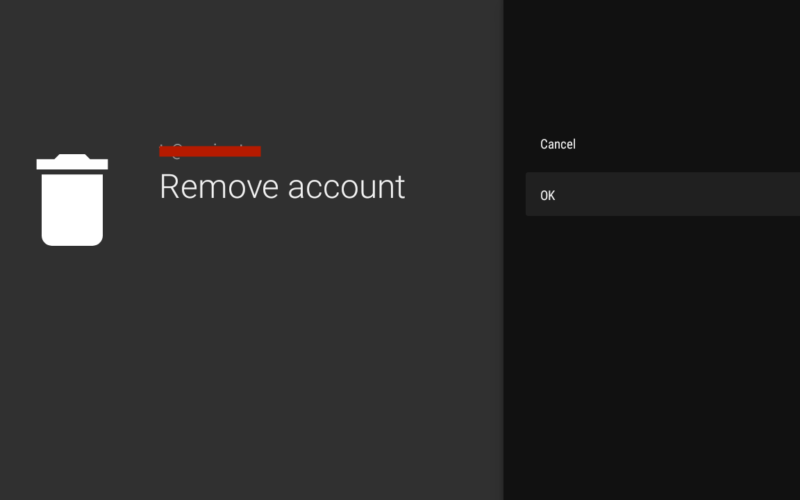
- In settings navigate to Accounts and Sign-In again and remove your google account
- Uninstall the Downloader app. You can do this from the main apps grid and long press on the app and choose uninstall. Alternatively you can find it under settings -> apps -> Downloader and choose uninstall.
Installing via ADB
This method is suitable for those with more advanced computers knowledge, and access is available for a laptop to be on the same network as the TVs.
One off laptop preparation
- The laptop you are using to install the app via must be able to communicate to the TV via network (TCP protocols). By default this often uses port 5037 but ADB will scan a range of odd port numbers from 5555-5585.
- Install ADB onto your laptop which is part of the Android platform tools: https://developer.android.com/tools/releases/platform-tools – This can be used on Windows, macOS, or Linux.
- If required, you can also add the ‘adb‘ command line to your systems PATH so you can use it in any folder at ease
- Download your version of the holidaymaker manager app which you will be provided the url for – this will often be https://seeview.tv/app/xx or similar. This will download the apk file of your branded manager app
- In command line navigate to the folder of this apk file
TV-by-TV Basis preparation
- Enable Developer tools on the TV – This may be different depending on the Android version but is often: Settings -> Device Preferences -> About -> Build Number = Click on this 10 times to enable
- Find the Developer tools settings list and turn ON USB debugging, and turn OFF ‘Verify Apps over USB’
- Find the IP Address of the TV (in network/wifi settings)
Install via adb
- On your laptop command line run adb connect {ip address} eg if TV is found at 192.168.1.140 do adb connect 192.168.1.140
- This will often say straight away that authentication has failed – the TV will popup a dialog asking if you allow connection via your mac address. Click allow always – you could try and run the connect command again, but often this is actually connected
- To install the app do adb install hmmanager.apk – This will inform you that it is streaming install, and then hopefully say it was completed. Note: Change the name of the apk if required, and if not in the same folder, you will need to provide an absolute file path instead of the relative file name.
- Once installed do adb disconnect which will then disconnect from all adb connections.
Clean up
- On the TV, ensure that the app has installed ok – usage guides for the app can be found here
- Go back to the developer settings on the TV and then disable them